Somewhere in your tenant is a guest account from a project that wrapped up two years ago. Someone from a partner, a freelancer, an accountant: invited for one SharePoint site, added to one Team, and never thought about again. The project ended. The account did not.
Guests are the easiest thing to add in Microsoft 365 and the easiest thing to forget. Every one of them is an external identity with a foothold in your tenant, and the pile only ever grows in one direction. Nobody offboards a guest.
Why inactive guest accounts are a real risk
A guest account isn't a harmless placeholder. It can hold membership in Teams, access to SharePoint sites, and permissions on shared content, all authenticated from an identity you don't control and can't enforce a password policy on. When that external account gets phished, or the partner company has a breach, the blast radius is your data, reached through a door you left open.
For anyone thinking in framework terms, this sits right on top of the parts auditors actually poke at: management of inactive accounts, least privilege, and periodic access reviews. BIO2 and NIS2 both expect you to know who has access and to pull it when it's no longer needed. "We invite guests as needed" is a policy. The auditor wants the list of guests who haven't signed in since 2023, and proof you did something about them. Let's build that list.
How Entra tells you a guest went dark
The signal lives in one property: signInActivity. It carries three timestamps worth knowing:
lastSuccessfulSignInDateTimeis the last time the account actually got in. This is the one you want. It's been available since December 2023, and it isn't backfilled, so older accounts may be blank here.lastSignInDateTimeis the last interactive sign-in attempt, successful or not.lastNonInteractiveSignInDateTimecovers token refreshes and background client activity.
There's one behaviour that trips people up: signInActivity is not returned at all for an account that has never signed in. So a blank isn't a bug, it's a category. A guest with no sign-in activity either never accepted the invite or never used it, which for our purposes is the worst kind of stale. When the property is empty, we fall back to createdDateTime: invited this long ago, never once seen.
Mind the licence. The sign-in timestamps in
signInActivityrequire an Entra ID P1 or P2 licence and theAuditLog.Read.Allpermission. Without both, Graph returns that field empty for every user, and suddenly your whole tenant looks like it never signed in. If every guest comes back as "never signed in," don't panic and mass-disable: check your licensing and scopes first.
No Entra Premium? You still catch the worst offenders
Here's the good news for tenants without P1/P2. The sign-in dates need the licence, but two of the most useful signals don't. createdDateTime (when the guest was invited) and externalUserState (whether they ever accepted) are ordinary directory properties that come back on any tenant, free.
That means even with no Entra Premium anywhere in sight, you can reliably surface the single most removable thing in your directory: guests invited months ago who never accepted the invite. A guest sitting at PendingAcceptance for 400 days was never in play. You don't need a sign-in timestamp to know that account is dead weight. What you lose without the licence is the subtler distinction between "accepted and active" and "accepted and dormant." The obvious junk still shows up.
The script leans into this. It checks once whether signInActivity is actually coming back, and only then adds the licensed columns (LastSuccessfulSignIn, LastInteractiveSignIn, and a NeverSignedIn flag) to the export. On a Premium tenant your CSV carries the sign-in evidence; on a tenant without it those columns are absent entirely, so nobody mistakes an empty field for a confirmed "never signed in." Same script, honest output either way.
The measurement
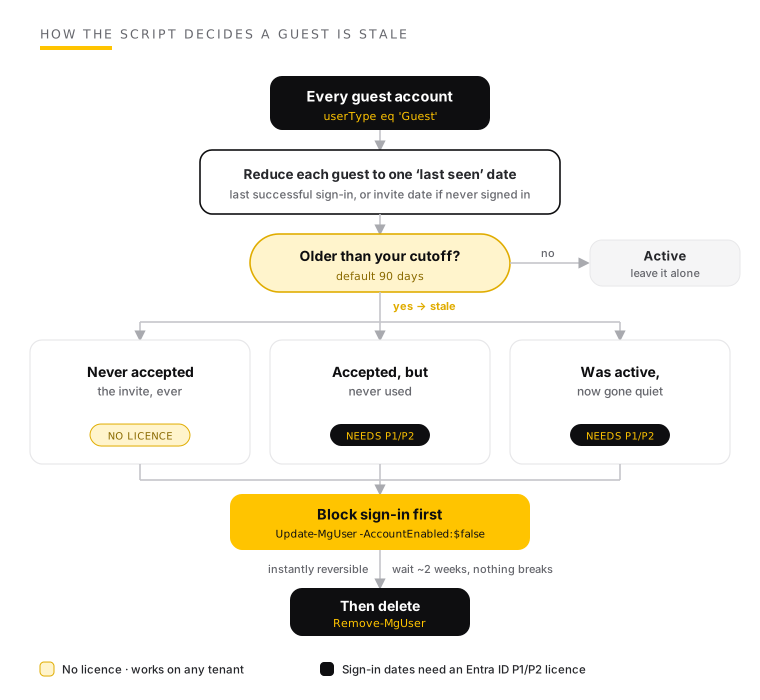
Read-only, no changes to anything. Pull every guest, work out when each was last genuinely seen, and keep the ones past your cutoff. Note that we filter on userType, not on signInActivity. The sign-in field can't be combined with other filters, so we grab it with -Property and do the date maths ourselves.
<#
.SYNOPSIS
    Finds stale Entra ID guest accounts and reports which ones to block.

.DESCRIPTION
    Pulls every guest user, works out when each was last genuinely seen (last
    successful sign-in, or the invite date when a guest never signed in), and
    exports the accounts past a chosen inactivity threshold. Read-only: it
    reports, it changes nothing. When the tenant is licensed for it, the export
    gains extra sign-in columns; without the licence those columns are simply
    left off, so the report never lies about data it doesn't have.

.NOTES
    Requires the Microsoft.Graph.Authentication and Microsoft.Graph.Users modules.
    signInActivity dates need an Entra ID P1/P2 licence and AuditLog.Read.All.
    The invite date (createdDateTime) and acceptance state (externalUserState)
    work on any tenant, so pending, never-accepted guests surface without a licence.
#>

Connect-MgGraph -Scopes "User.Read.All", "AuditLog.Read.All"

$DaysInactive = 90
$cutoff = (Get-Date).AddDays(-$DaysInactive)

# 1) Every guest, with sign-in activity and the date they were invited
$props = "id,displayName,userPrincipalName,mail,accountEnabled,createdDateTime,externalUserState,signInActivity"
$guests = Get-MgUser -All -Filter "userType eq 'Guest'" -Property $props

# Is sign-in activity actually coming back? It stays empty on tenants without an
# Entra ID P1/P2 licence. Decide once, so every row gets the same set of columns.
$hasSignInData = [bool]($guests.SignInActivity | Where-Object { $_ })

# 2) Decide who is stale. No signInActivity means never signed in, so fall back to the invite date.
$report = foreach ($g in $guests) {

    $lastSeen = $g.SignInActivity.LastSuccessfulSignInDateTime
    if (-not $lastSeen) { $lastSeen = $g.SignInActivity.LastSignInDateTime }

    # Reference date: last real sign-in, or when the account was created if it never signed in
    $reference = if ($lastSeen) { [datetime]$lastSeen } else { [datetime]$g.CreatedDateTime }
    if ($reference -ge $cutoff) { continue }   # still active within the window, skip

    # Base columns work on any tenant, licence or not
    $row = [ordered]@{
        Id                = $g.Id   # the stable handle for actions; guest UPNs are awkward (#EXT#)
        DisplayName       = $g.DisplayName
        UserPrincipalName = $g.UserPrincipalName
        InviteState       = $g.ExternalUserState   # PendingAcceptance means never even accepted
        InvitedDaysAgo    = [int]((Get-Date) - [datetime]$g.CreatedDateTime).TotalDays
        AccountEnabled    = $g.AccountEnabled
        InactiveDays      = [int]((Get-Date) - $reference).TotalDays
    }

    # Licensed extras: add the real sign-in evidence as separate columns, only when it exists
    if ($hasSignInData) {
        $row['NeverSignedIn']        = [bool](-not $lastSeen)
        $row['LastSuccessfulSignIn'] = $g.SignInActivity.LastSuccessfulSignInDateTime
        $row['LastInteractiveSignIn'] = $g.SignInActivity.LastSignInDateTime
    }

    [pscustomobject]$row
}

# 3) Worst offenders on top, and keep the evidence
$report | Sort-Object InactiveDays -Descending | Format-Table -AutoSize
$report | Export-Csv .\inactive-guests.csv -NoTypeInformation -Encoding UTF8
Reading the result
Two columns tell most of the story:
| Column | What it's telling you |
|---|---|
InviteState = PendingAcceptance |
Invited but never accepted. Dead weight from day one, and the safest thing in your tenant to remove. Works on any tenant. |
NeverSignedIn = True |
Accepted the invite (or the state is unknown) but never actually used the account. Invited "just in case," never in play. Licensed column. |
InactiveDays (high, NeverSignedIn = False) |
A real, once-active guest who has gone quiet. This is where a short "still needed?" email to the sponsor pays off. |
The NeverSignedIn, LastSuccessfulSignIn, and LastInteractiveSignIn columns only appear when your tenant is licensed for sign-in data. If they're missing from your CSV, that's your answer on the licence, and InviteState plus InvitedDaysAgo are still doing honest work.
One nuance so you read it honestly: lastSignInDateTime reflects sign-ins to your directory and resources. A B2B guest can be busy in their own tenant and still show up here as inactive, which is exactly right, because it means they aren't touching your stuff.
From list to action
Disable before you delete. Blocking sign-in is instantly reversible; if someone shouts, you flip one property back. Deletion is a 30-day clock. And because these two steps land weeks apart, drive both from the CSV you exported, not from $report in memory, which is gone the moment you close the window. The export is your worklist, and later your audit trail.
Step one, block sign-in on everything in the list:
# Fresh session, write scope only. Blocking needs nothing more than this.
Connect-MgGraph -Scopes "User.ReadWrite.All"

# Read back the list you exported earlier, so this runs in any session.
$report = Import-Csv .\inactive-guests.csv

# Eyeball it. Happy? Block sign-in on every account.
# Target by Id, not UPN: guest UPNs carry the #EXT# format and are easy to fumble.
foreach ($g in $report) {
    Update-MgUser -UserId $g.Id -AccountEnabled:$false
    Write-Host "Blocked: $($g.UserPrincipalName)"
}
Now give it a couple of weeks. Nobody complained, nothing broke? Come back to the same CSV and remove the accounts that were never real to begin with, the ones that never accepted or have sat dark for months. The rest stay blocked, your safety net:
# Weeks later, a fresh session. Same export, same write scope.
Connect-MgGraph -Scopes "User.ReadWrite.All"

# Remove only the clear-cut cases; leave everything else blocked but recoverable.
Import-Csv .\inactive-guests.csv |
    Where-Object { $_.InviteState -eq 'PendingAcceptance' -or [int]$_.InactiveDays -gt 180 } |
    ForEach-Object {
        Remove-MgUser -UserId $_.Id
        Write-Host "Removed: $($_.UserPrincipalName)"
    }
Blocked, then deleted, is a clean and defensible audit trail. The export is your before, the disabled accounts are your after, and the ones still standing are the ones you deliberately kept.
Why not just use Microsoft's built-in report?
By now you might be wondering why you're running a script at all. Fair question. Entra does ship an inactive guest insights report, and Access Reviews can even disable and delete stale guests for you on a schedule. It's genuinely good tooling. It's also parked on the most expensive shelf in the store: the inactive guest report and the inactive-user Access Reviews need a Microsoft Entra ID Governance or Entra Suite licence, not the P1/P2 most tenants already own. And since January 2026, running a guest access review meters per guest through the Entra ID Governance for Guests add-on, so the tidy automation arrives with a line on your Azure bill.
The script asks for a lot less. The sign-in dates it reads come with plain P1/P2, and the never-accepted detection costs nothing at all. You get the same core answer, "which guests are dead weight," without buying the top SKU to find out. If you already own Governance, use the built-in reviews for the recurring workflow by all means. But you should never have to upgrade a licence just to answer a question your directory already knows.
From measurement to assurance
Running this once buys you a cleanup. The real win is repetition, because the guest pile refills the moment you look away, as every new project invites a few more. So schedule the measurement, wire an Access Review onto your guests, or at minimum make "does this guest still need to be here?" a recurring question with a CSV to answer it. Policy says you manage inactive accounts. The export proves you actually do.
Want this baked into a periodic access review, or folded into a broader baseline assessment of your tenant? Let me know.